Supabase
We use Supabase for authentication and cloud database services. It's completely free to use for starting products.
Setting up Supabase
Step 1: Authentication
Go to Supabase and get started by signing in or creating a new account. After that, go to your dashboard & create a "New Project".
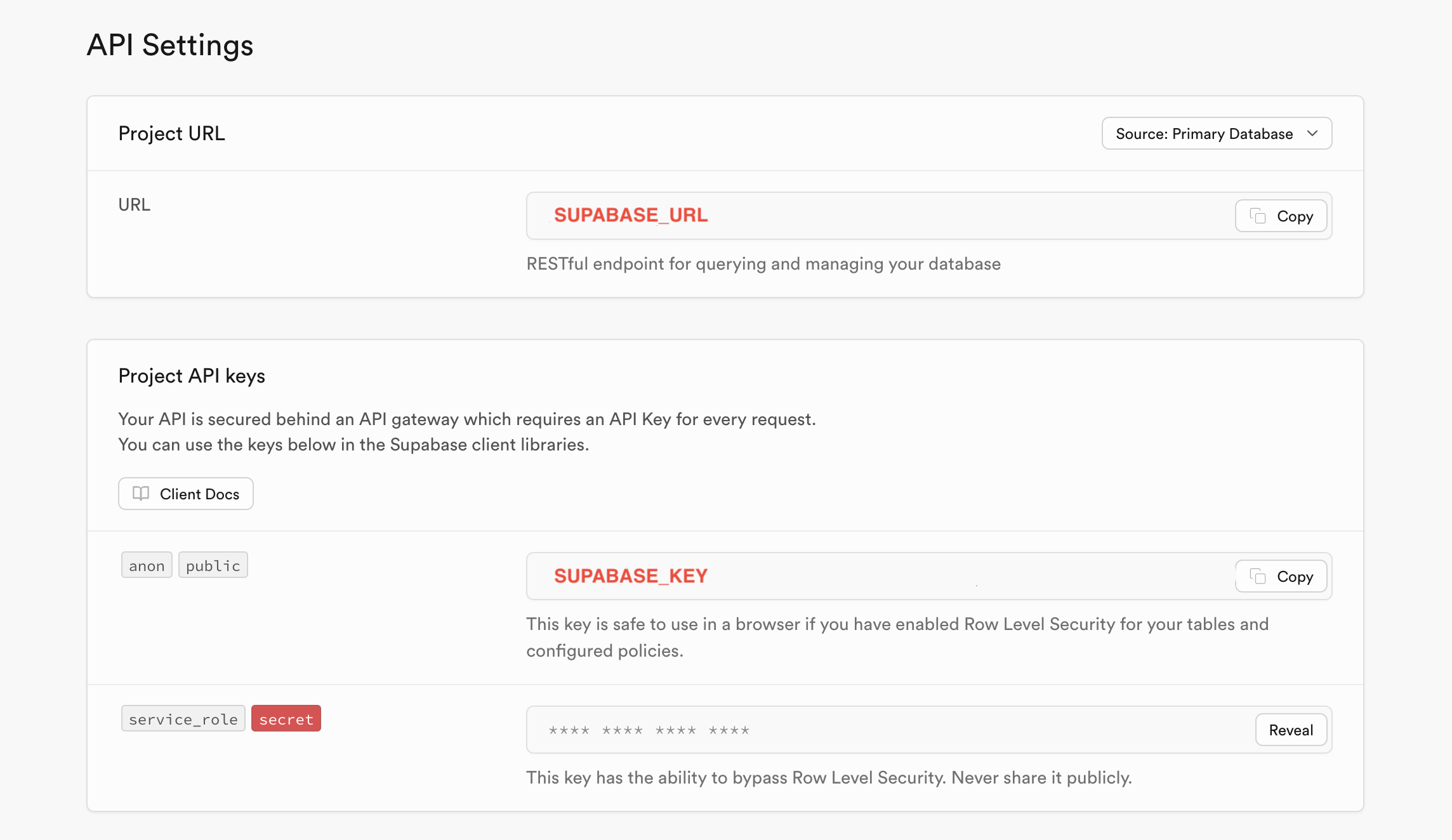
After project creation, go to "Project Settings" tab in aside menu. From there, go to "API" and copy SUPABASE_URL & SUPABASE_KEY project API keys. Copy them and paste into .env file.
Step 2: Database
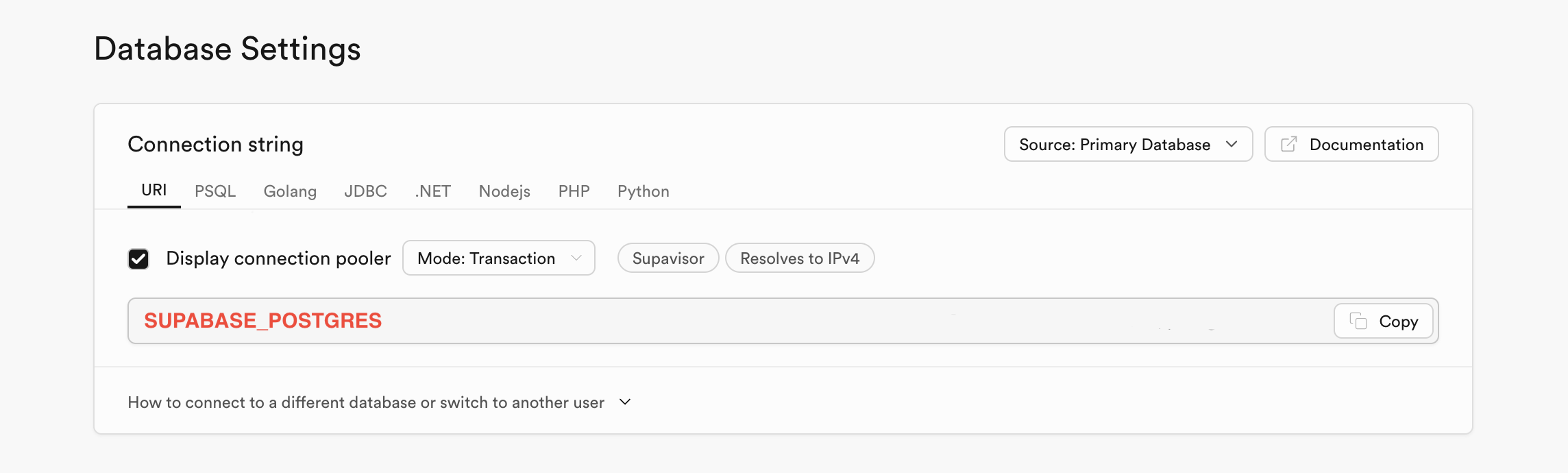
Go to "Project Settings" tab in aside menu. From there, go to "Database" and copy the Connection string. Paste it into .env file, replacing the [YOUR-PASSWORD] part.
Step 3: URL & SMTP Configuration
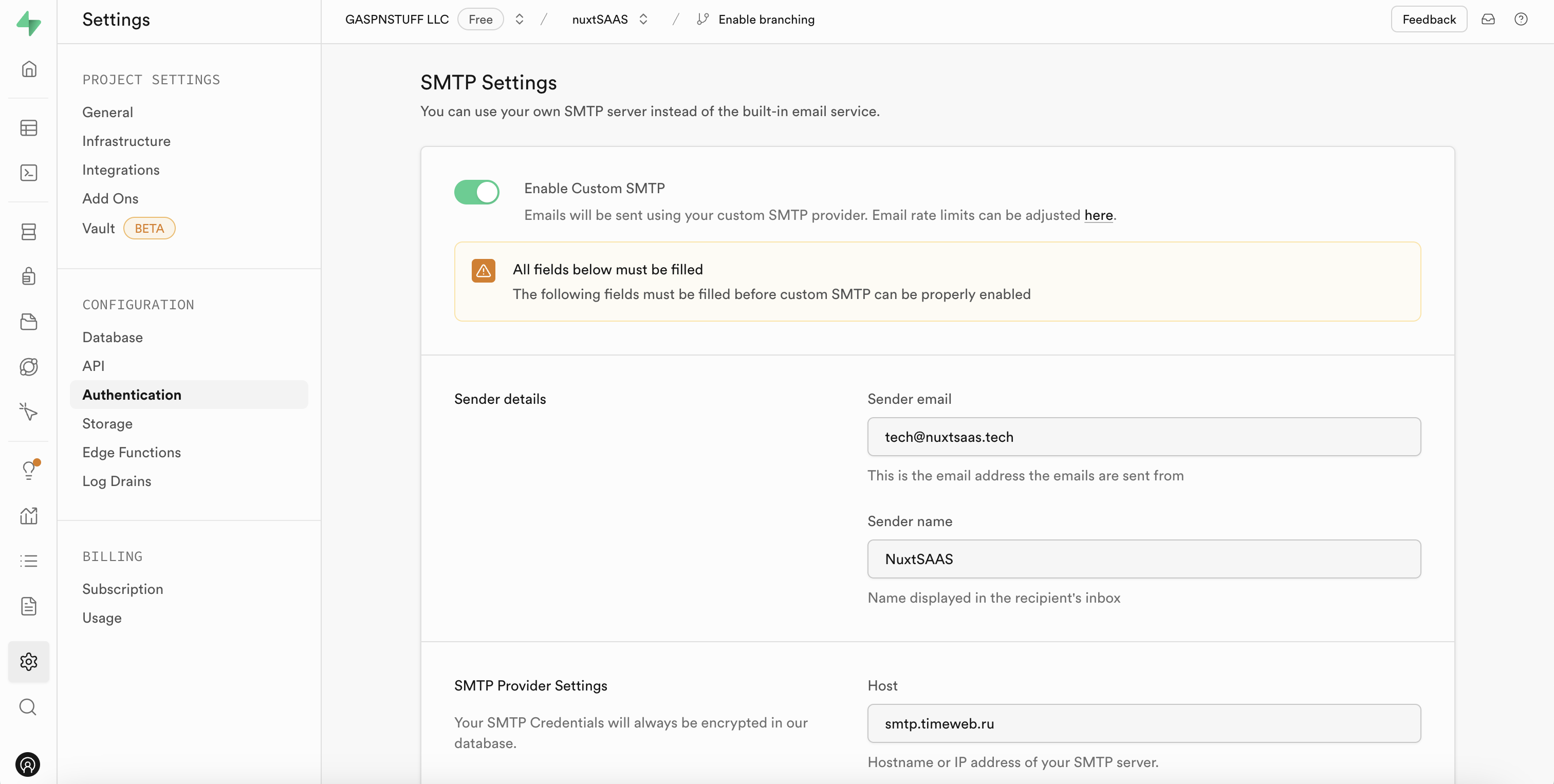
In "Project Settings" tab click on "Authentication" and under the SMTP Settings set SMTP credentials of your email.
It will allow Supabase to send email confirmation messages & much more.
All set! You've set up Supabase for your project. Now you're able to authenticate & sign up using Supabase.